OCR Text to Speech: Turn Any Image Into Audio Free
Turn a photo or scanned page into speech, with a direct workflow, honest limits, and fixes for the OCR errors that matter most.
Co-Founder of Read Aloud Reader with a background in tech and blockchain, writing about tech, productivity, AI, and security.
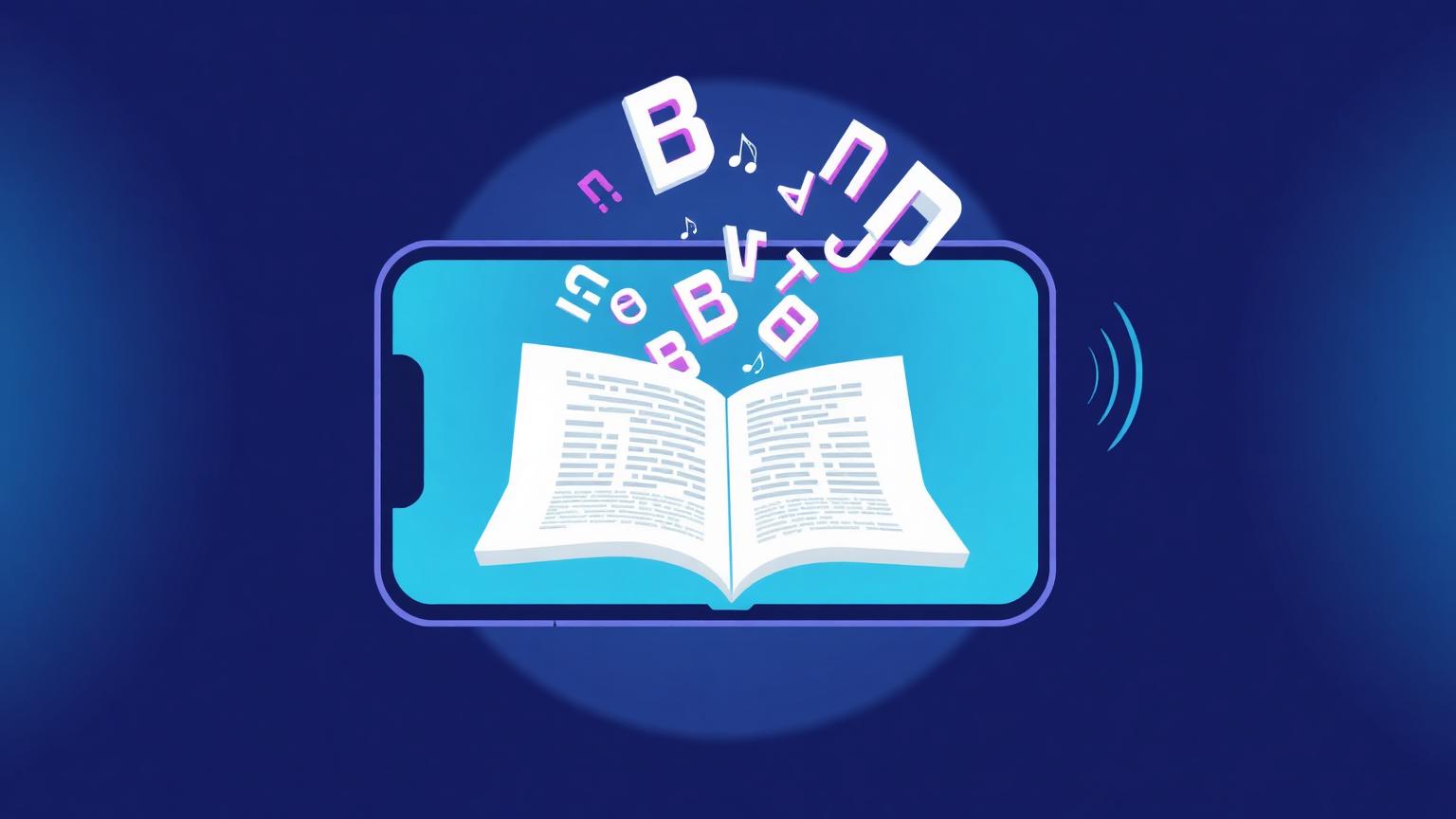
OCR text to speech turns words in a photo or scan into audio you can hear. OCR (optical character recognition) turns a picture of text into actual text. Text to speech turns that text into audio. Chain them together and you can point your phone at a printed page, a whiteboard, a restaurant menu, or a scanned document and have it read out loud in under a minute.
The reason this matters more in 2026 than it did a few years ago is that both halves of the chain have quietly gotten very good. Modern OCR handles handwriting, low contrast, and odd angles that used to break it instantly. Modern neural TTS makes the resulting audio listenable rather than robotic. The combined workflow is now practical for accessibility, study and everyday printed material. For a related text-first flow, our read articles aloud guide covers the same idea for web content.
What ocr text to speech actually does, end to end
The full pipeline has three steps, two of which are usually invisible:
- Capture. A photo, a screenshot, a scan, or an uploaded image. The source can be a printed book, a handwritten note, a slide, a sign, a piece of mail — anything with characters on it.
- Recognize. An OCR model parses the image and produces plain text. This is the step that fails when the image is blurry, the lighting is bad, or the font is unusual.
- Speak. A TTS engine turns that text into audio. Neural voices handle the result; system voices make it sound like a 2010 GPS unit.
The user-facing experience is usually "point camera, hear voice." Everything between those two steps happens in the background. When it works, it feels like magic. When it breaks, it almost always breaks at step two — the OCR — and the fix is usually a better photo rather than a different app.
The four common ways to do ocr read aloud (and image text to speech) in 2026
The options fall into a small set of patterns, each with a specific kind of user.
- Phone accessibility features. iPhone's Live Text and Android's Lookout / Google Lens can both recognize text in a photo and read it aloud with a long-press or accessibility shortcut. Built in, free, instant, but voice quality is whatever your system provides.
- Dedicated accessibility apps. Apps like Seeing AI, Envision, and Voice Dream Scanner are purpose-built for low-vision users. They handle real-world capture (signs, menus, mail) better than general-purpose tools and have OCR tuned for messy input.
- OCR-first tools plus a separate reader. Run the image through a strong OCR tool (Google Docs' built-in OCR, Adobe Scan, ABBYY), grab the text, then paste it into a dedicated reader like Read Aloud Reader for a neural voice and MP3 export. This is the path that wins for documents you want to keep as audio.
- All-in-one image to speech apps. A growing category that does both halves in one upload. Convenient when they work, frustrating when the OCR is mediocre — and most of the free ones use older system voices for the speech half.
For one-off real-world capture (a sign, a menu, a single page), the phone accessibility features are unbeatable on speed. For anything you want to listen to for more than a minute, the OCR-first path produces better audio.
A practical OCR-to-audio workflow
A reliable approach uses one tool for capture and recognition, then a reader for listening:
- Capture with the best OCR you have access to. Google Drive (right-click an image → Open with Google Docs) does free OCR that handles most printed text. Adobe Scan is the mobile equivalent. For handwriting, dedicated handwriting OCR (Pen to Print, Nebo) usually beats general-purpose tools.
- Spot-check the text. Even good OCR makes occasional errors. Skim the recognized text for obvious nonsense — substituted letters, missing punctuation, run-together words. A 30-second pass catches the worst of it.
- Paste into a reader and pick a neural voice. Read Aloud Reader, Speechify, NaturalReader, or any of the modern neural readers will all produce decent audio from clean text. The neural voice is the part that makes the experience listenable for more than a minute.
- Save the MP3 if you want it for later. This is the step that turns a one-off lookup into a useful audio file you can replay on a commute or a walk.
The time needed depends on the image and how much correction the recognized text needs. The OCR quality matters more than the TTS quality for the final result — bad source text produces bad audio no matter how good the voice is.
Scan a page directly in Read Aloud Reader
- Open the reader and choose the image upload option.
- Select a clear JPG, PNG, WebP or HEIC image of the page.
- Review the recognized text before pressing play, especially names, numbers and headings.
- Correct obvious recognition errors, choose a voice and listen normally.
Everyone can try two image scans per rolling seven days. Image scanning is a Studio feature for ongoing use. A text-based PDF does not need this step; upload the PDF directly. A scanned PDF contains page images, so its pages need OCR first.
What our image-scan activity shows
From 20 June to 20 September 2026, the scanner processed 65 images across 46 anonymized account or browser identifiers. That is a small product sample, not evidence about OCR use across the wider market. It is enough to show that real readers use image capture, but not enough to claim which document type is most common or which OCR method is most accurate.
For that reason, the recommendations here come from observable failure modes rather than invented accuracy percentages. Lighting, page angle, curvature and unusual typefaces are the variables to check first.
What breaks ocr text to speech and how to fix it
Three failure modes account for almost every "this didn't work" moment with image to speech tools. Each has a quick fix once you know what to look for.
- Bad lighting on capture. Glare, shadows, and uneven lighting destroy OCR accuracy faster than any other factor. Move to softer, more even light before retaking the photo — the OCR will improve dramatically without changing tools.
- Angled or curved pages. A book photographed from above with the spine in the middle creates a curved page that OCR struggles with. Flatten the page, photograph it square-on, or use a scanning app that auto-corrects perspective.
- Unusual fonts or handwriting. Decorative fonts, very small print, and most handwriting need specialized OCR. General-purpose tools will guess and produce garbage; dedicated handwriting OCR will produce something usable.
One pattern that surprises people: cleaner OCR matters more than fancier TTS for the final result. A flat-but-clear neural voice reading accurate text sounds far better than an expressive voice mangling words OCR got wrong.
Useful OCR text-to-speech jobs
The workflow is especially useful when the source has no selectable text.
Print-only research material. Old books, scanned articles from a university library, course readers handed out as photocopies. People scan them, OCR them, and listen on a walk. The audiobook-style result is a much faster way through a dense reading list than reading silently page by page. Our read textbooks aloud workflow goes deeper on this for course-length material.
Mail and admin. Insurance letters, tax forms, the dense paperwork that nobody enjoys reading. Photographing it and listening turns a 20-minute task into something you can do while making coffee.
Whiteboard and slide capture. Photograph a whiteboard at the end of a meeting, OCR it, paste the text into a reader, and you have an audio summary to review on the way home. Same trick works for conference slides.
The setup that holds up over time
The OCR-text-to-speech setup that ages well is unexciting: a strong OCR tool of your choice, plus one neural reader you trust for the listening half. The combination can outlast an all-in-one tool for one simple reason — each half improves on its own schedule, and you can swap either side without rebuilding the workflow. The reader handles the listening; the OCR tool handles whatever new input pattern shows up next.
Frequently Asked Questions
What is OCR text to speech?
OCR text to speech is a two-step process: optical character recognition reads the text in an image, photo, or scan, and a text-to-speech engine reads that text aloud. Modern tools combine both steps so you can point your phone at a page and hear it within seconds.
Is ocr read aloud built into iPhone and Android?
Yes. iPhone's Live Text and Android's Google Lens / Lookout both recognize printed text in photos and can read it aloud through accessibility shortcuts. Voice quality is whatever your system TTS provides — fine for short reads, less great for long passages.
What's the best image to speech workflow for long documents?
Use a dedicated OCR tool first (Google Drive's free OCR, Adobe Scan, or ABBYY for hard cases), spot-check the recognized text, then paste it into a neural reader like Read Aloud Reader and export to MP3. The two-step path beats most all-in-one image-to-speech apps on audio quality.
Why does my OCR text to speech sound wrong?
The problem is almost always the OCR step, not the TTS step. Bad lighting, angled pages, and unusual fonts make OCR substitute letters, which the reader then dutifully pronounces. Retake the photo with even lighting and the page flat, and the result usually fixes itself.
Try Read Aloud Reader for Free
Paste any text and listen instantly with premium AI voices. No signup required.
Read Text Aloud — Free